5. Querying the Database
We want to know which tasks we need to do, so let's list them!
The primary way of working with Entities in Wasp is with Queries and Actions, collectively known as Operations.
Queries are used to read an entity, while Actions are used to create, modify, and delete entities. Since we want to list the tasks, we'll want to use a Query.
To list the tasks, you must:
- Create a Query that fetches the tasks from the database.
- Update the
MainPage.tsxto use that Query and display the results.
Defining the Query
We'll create a new Query called getTasks. We'll need to declare the Query in the Wasp file and write its implementation in TS.
Specifying a Query
We need to add a query specification to main.wasp.ts so that Wasp knows it exists:
import { app, page, query, route } from "@wasp.sh/spec"
import { MainPage } from "./src/MainPage" with { type: "ref" }
import { getTasks } from "./src/queries" with { type: "ref" }

export default app({
  // ...
  spec: [
    route("RootRoute", "/", page(MainPage)),
    // Tell Wasp that this query reads from the `Task` entity. Wasp will
    // automatically update the results of this query when tasks are modified.
    query(getTasks, { entities: ["Task"] }),
  ],
})
To generate the types used in the next section, make sure that wasp start is still running.
Implementing a Query
Next, create a new file called src/queries.ts and define the TypeScript function we've just imported in our query spec:
- JavaScript
- TypeScript
export const getTasks = async (args, context) => {
  return context.entities.Task.findMany({
    orderBy: { id: "asc" },
  });
};
import type { Task } from "wasp/entities";
import type { GetTasks } from "wasp/server/operations";

export const getTasks: GetTasks<void, Task[]> = async (args, context) => {
  return context.entities.Task.findMany({
    orderBy: { id: "asc" },
  });
};
Wasp automatically generates the types GetTasks and Task based on the contents of main.wasp.ts:
Taskis a type corresponding to theTaskentity you defined inschema.prisma.GetTasksis a generic type Wasp automatically generated based on thegetTasksQuery you defined inmain.wasp.ts.
You can use these types to specify the Query's input and output types. This Query doesn't expect any arguments (its input type is void), but it does return an array of tasks (its output type is Task[]).
Annotating the Queries is optional, but highly recommended because doing so enables full-stack type safety. We'll see what this means in the next step.
Query function parameters:
args: object
The arguments the caller passes to the Query.
-
contextAn object with extra information injected by Wasp. Its type depends on the Query specification.
Since the Query spec in main.wasp.ts says that the getTasks Query uses the Task entity, Wasp injected a Prisma client for the Task entity as context.entities.Task - we used it above to fetch all the tasks from the database.
Queries and Actions are NodeJS functions executed on the server.
Invoking the Query On the Frontend
While we implement Queries on the server, Wasp generates client-side functions that automatically take care of serialization, network calls, and cache invalidation, allowing you to call the server code like it's a regular function.
This makes it easy for us to use the getTasks Query we just created in our React component:
- JavaScript
- TypeScript
import { getTasks, useQuery } from "wasp/client/operations";

export const MainPage = () => {
  const { data: tasks, isLoading, error } = useQuery(getTasks);

  return (
    <div>
      {tasks && <TasksList tasks={tasks} />}

      {isLoading && "Loading..."}
      {error && "Error: " + error}
    </div>
  );
};

const TaskView = ({ task }) => {
  return (
    <div>
      <input type="checkbox" id={String(task.id)} checked={task.isDone} />
      {task.description}
    </div>
  );
};

const TasksList = ({ tasks }) => {
  if (!tasks?.length) return <div>No tasks</div>;

  return (
    <div>
      {tasks.map((task, idx) => (
        <TaskView task={task} key={idx} />
      ))}
    </div>
  );
};
import type { Task } from "wasp/entities";
import { getTasks, useQuery } from "wasp/client/operations";

export const MainPage = () => {
  const { data: tasks, isLoading, error } = useQuery(getTasks);

  return (
    <div>
      {tasks && <TasksList tasks={tasks} />}

      {isLoading && "Loading..."}
      {error && "Error: " + error}
    </div>
  );
};

const TaskView = ({ task }: { task: Task }) => {
  return (
    <div>
      <input type="checkbox" id={String(task.id)} checked={task.isDone} />
      {task.description}
    </div>
  );
};

const TasksList = ({ tasks }: { tasks: Task[] }) => {
  if (!tasks?.length) return <div>No tasks</div>;

  return (
    <div>
      {tasks.map((task, idx) => (
        <TaskView task={task} key={idx} />
      ))}
    </div>
  );
};
Most of this code is regular React, the only exception being the three special wasp imports:
getTasks- The client-side Query function Wasp generated based on thegetTasksspec inmain.wasp.ts.useQuery- Wasp's useQuery React hook, which is based on react-query's hook with the same name.Task- The type for the Task entity defined inschema.prisma.
Notice how you don't need to annotate the type of the Query's return value: Wasp uses the types you defined while implementing the Query for the generated client-side function. This is full-stack type safety: the types on the client always match the types on the server.
We could have called the Query directly using getTasks(), but the useQuery hook makes it reactive: React will re-render the component every time the Query changes. Remember that Wasp automatically refreshes Queries whenever the data is modified.
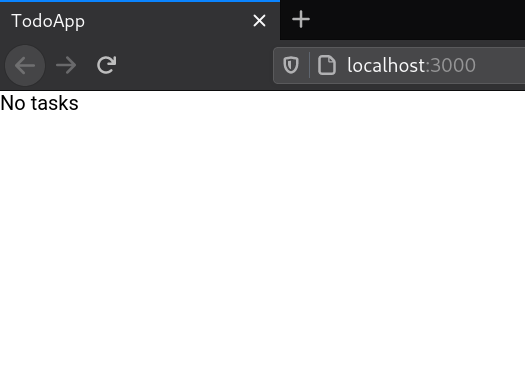
With these changes, you should be seeing the text "No tasks" on the screen:
We'll create a form to add tasks in the next step 🪄