Wasp supports Google Authentication out of the box. Google Auth is arguably the best external auth option, as most users on the web already have Google accounts.
Enabling it lets your users log in using their existing Google accounts, greatly simplifying the process and enhancing the user experience.
Let's walk through enabling Google authentication, explain some of the default settings, and show how to override them.
Setting up Google Auth
Enabling Google Authentication comes down to a series of steps:
- Enabling Google authentication in the Wasp file.
- Adding the
Userentity. - Creating a Google OAuth app.
- Adding the necessary Routes and Pages
- Using Auth UI components in our Pages.
Here's a skeleton of how our main.wasp.ts should look like after we're done:
import { app, page, route } from "@wasp.sh/spec"
import { LoginPage } from "./src/pages/auth" with { type: "ref" }

// Configuring the social authentication
export default app({
  name: "myApp",
  wasp: { version: "^0.24" },
  title: "My App",
  head: ["<link rel='icon' href='/favicon.ico' />"],
  auth: {
    // ...
  },
  spec: [
    // Defining routes and pages
    route("LoginRoute", "/login", page(LoginPage)),
  ],
})
1. Adding Google Auth to Your Wasp File
Let's start by properly configuring the Auth object:
import { app } from "@wasp.sh/spec"

export default app({
  name: "myApp",
  wasp: { version: "^0.24" },
  title: "My App",
  head: ["<link rel='icon' href='/favicon.ico' />"],
  auth: {
    // 1. Specify the User entity (we'll define it next)
    userEntity: "User",
    methods: {
      // 2. Enable Google Auth
      google: {}
    },
    onAuthFailedRedirectTo: "/login"
  },
  // ...
})
userEntity is explained in the social auth overview.
2. Adding the User Entity
Let's now define the auth.userEntity entity in the schema.prisma file:
// 3. Define the user entity
model User {
  id Int @id @default(autoincrement())
  // Add your own fields below
  // ...
}
3. Creating a Google OAuth App
To use Google as an authentication method, you'll first need to create a Google project and provide Wasp with your client key and secret. Here's how you do it:
-
Create a Google Cloud Platform account if you do not already have one: https://cloud.google.com/
-
Create and configure a new Google project here: https://console.cloud.google.com/projectcreate
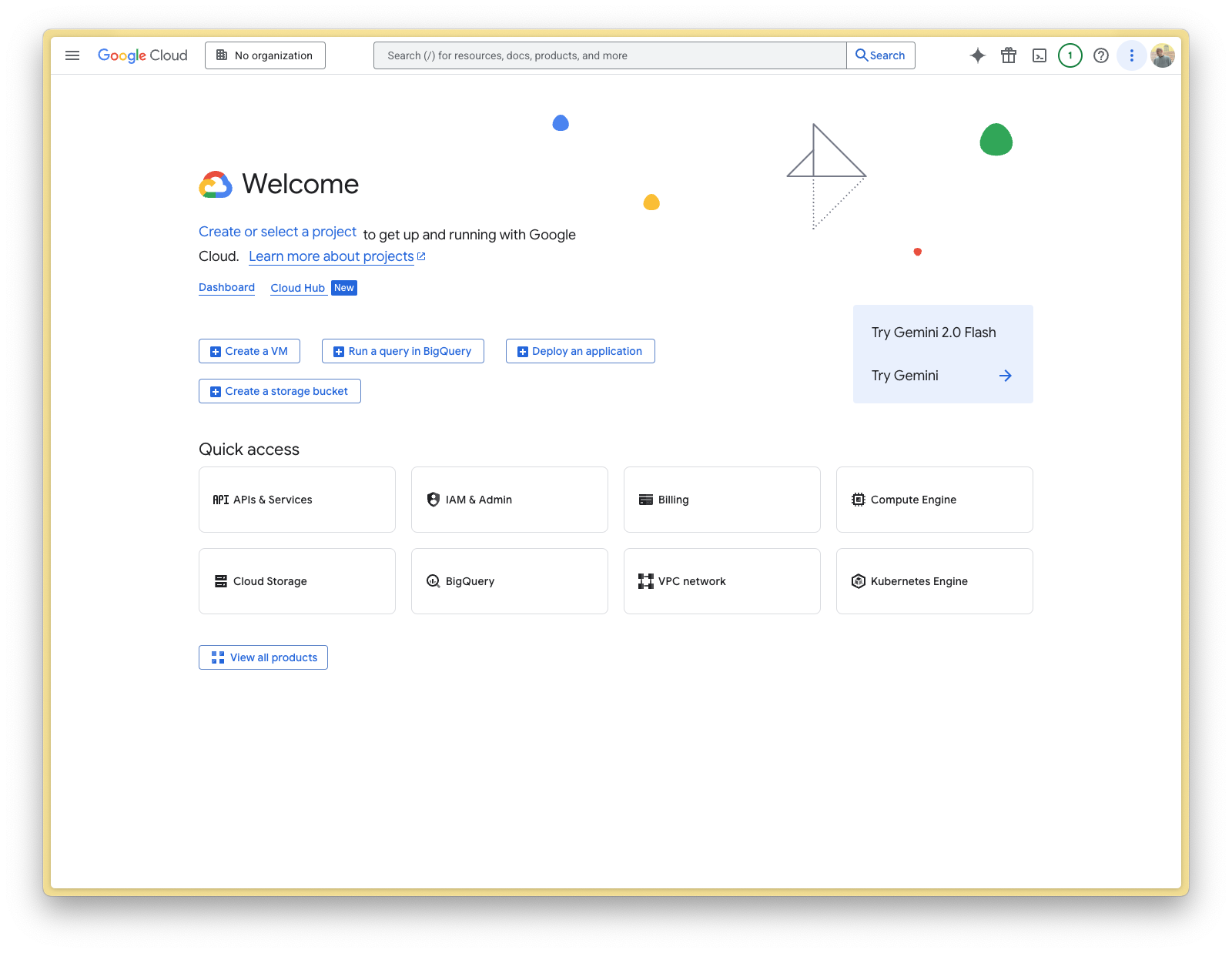
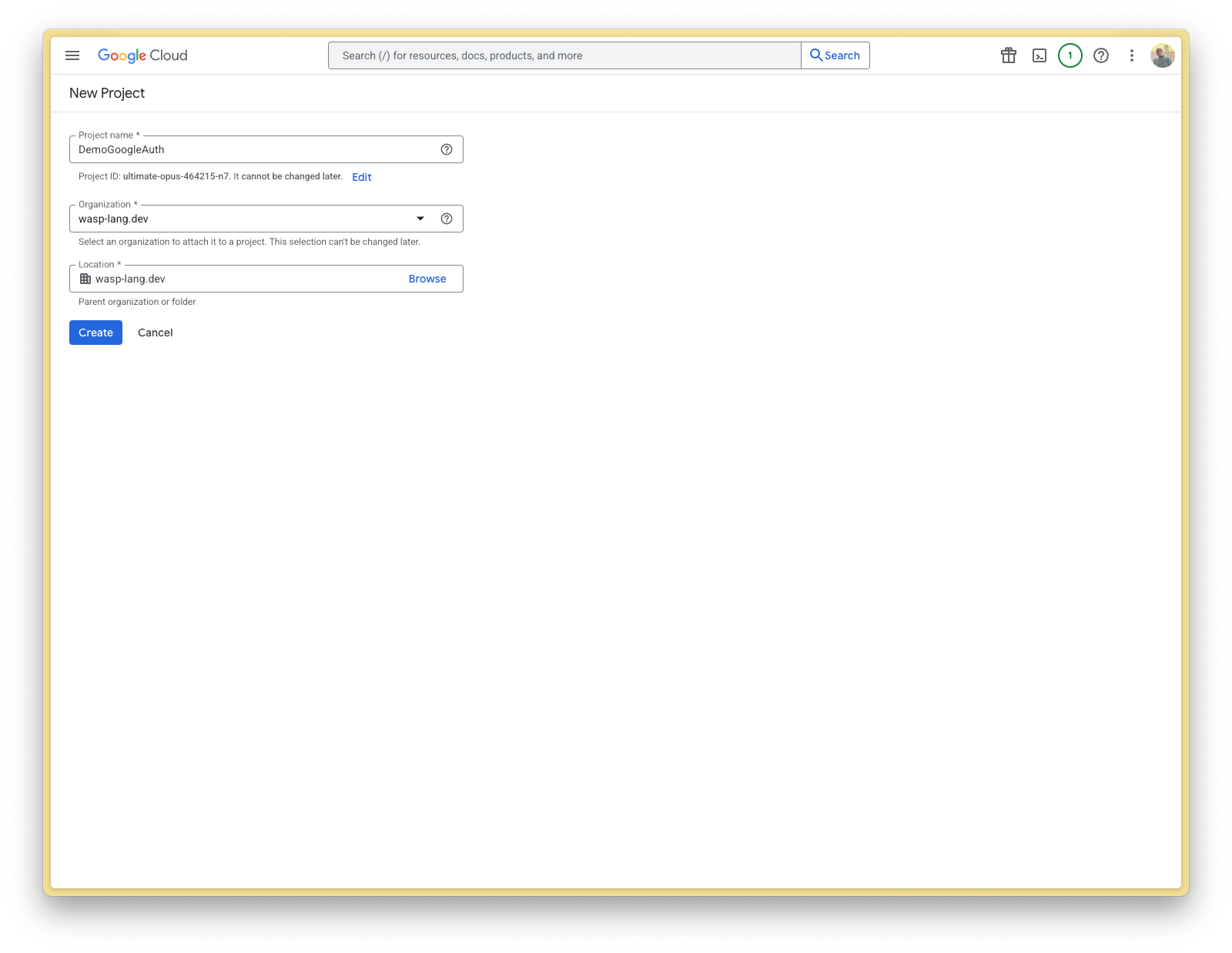
-
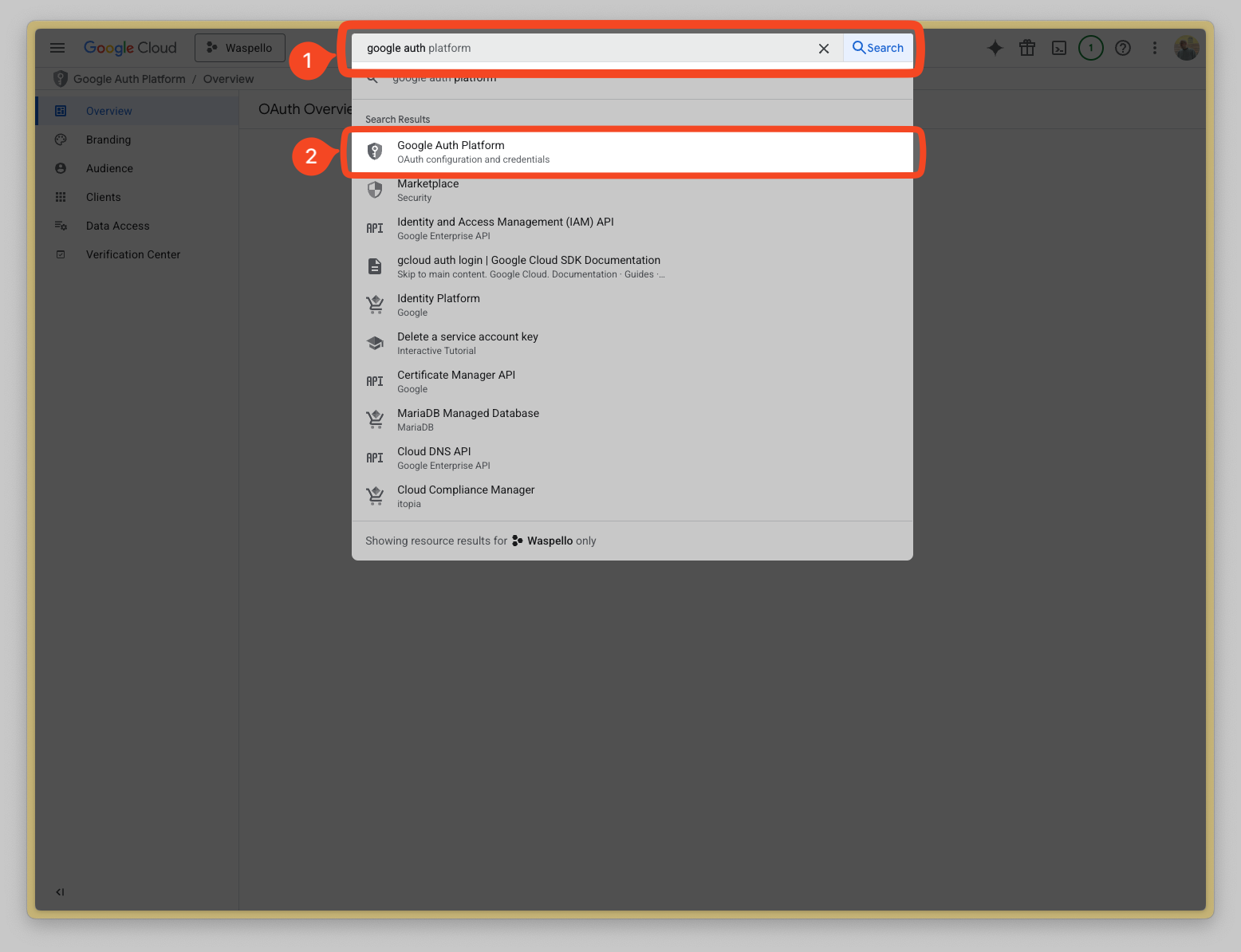
Search for Google Auth in the top bar (1), click on Google Auth Platform (2). Then click on Get Started (3).
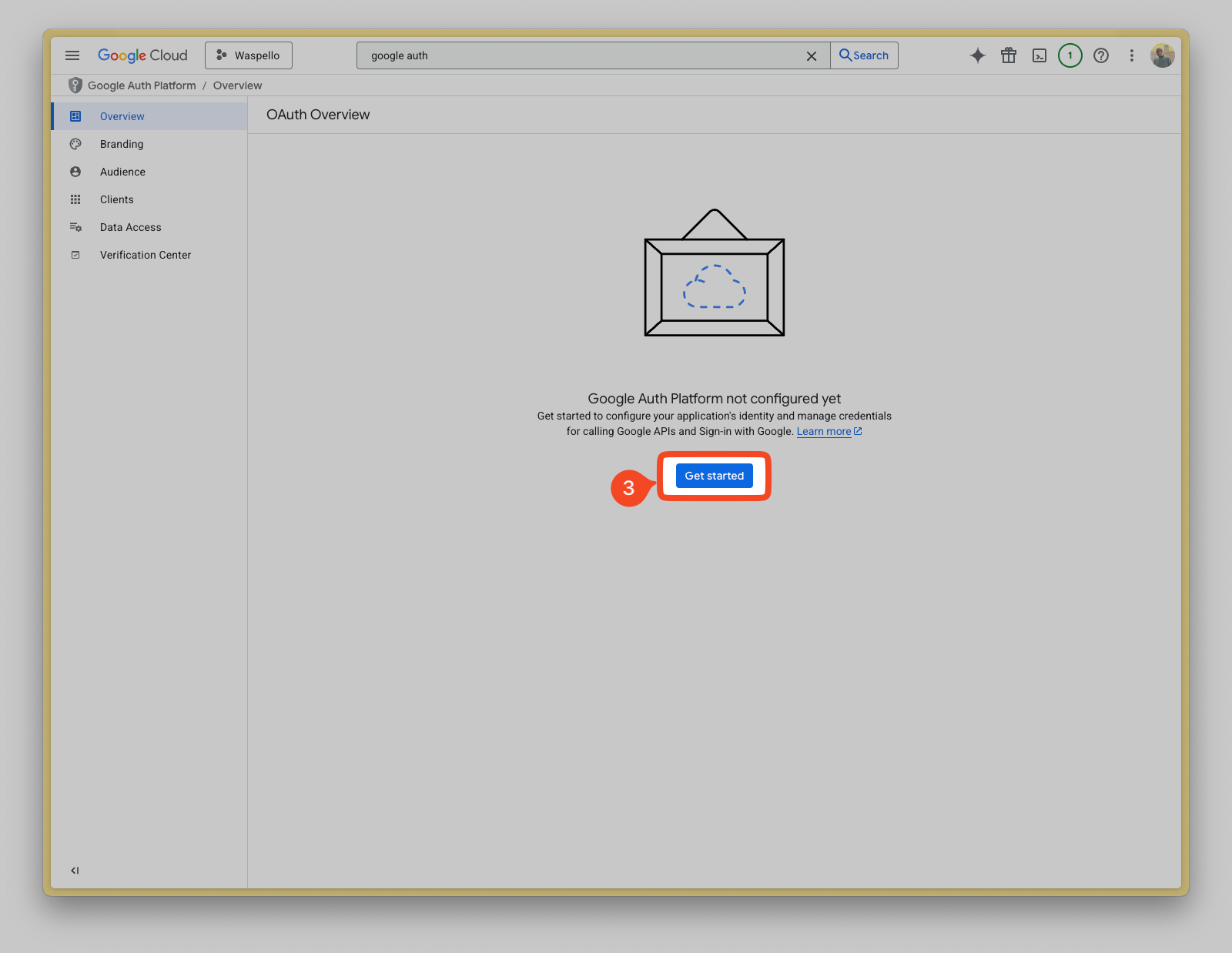
-
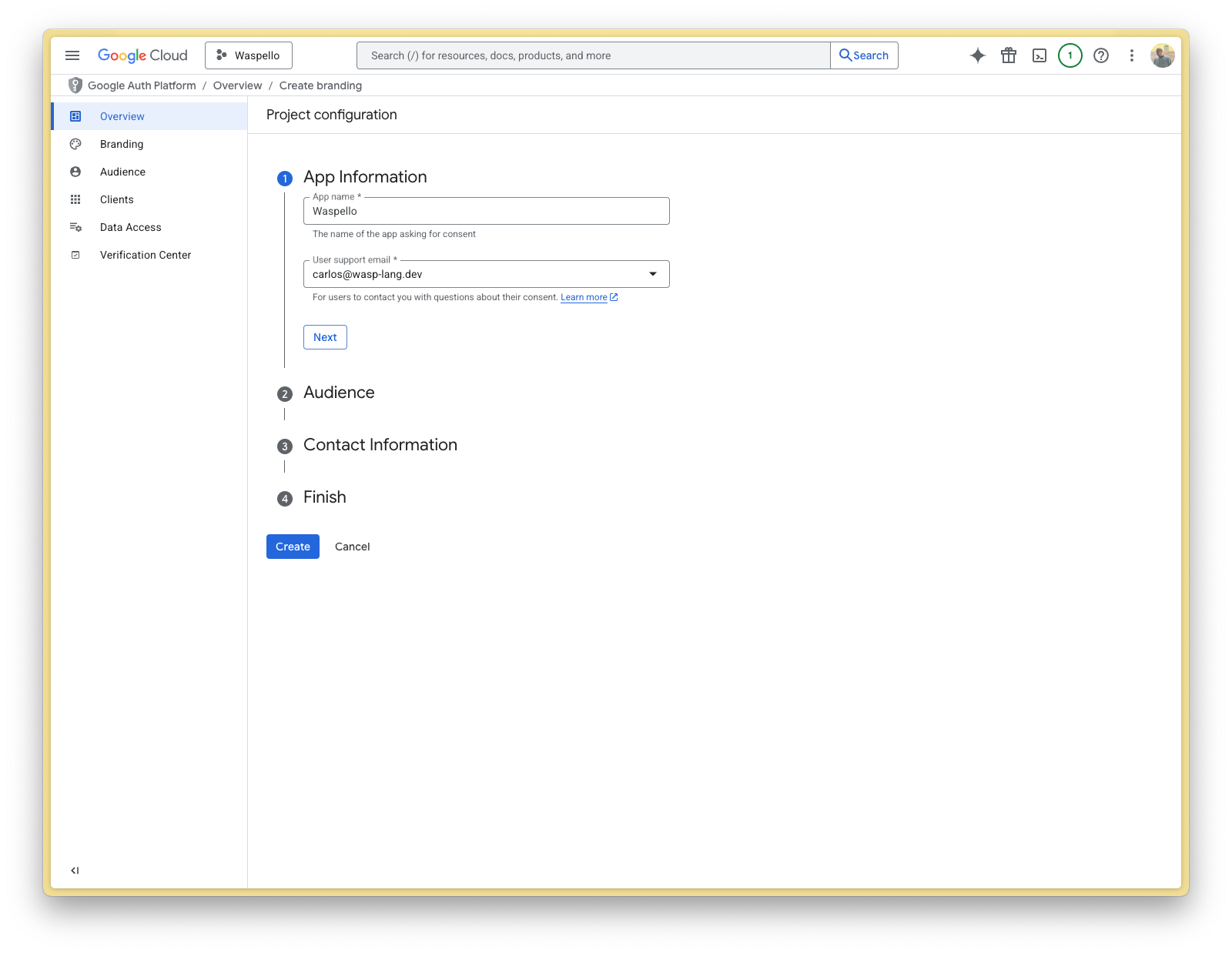
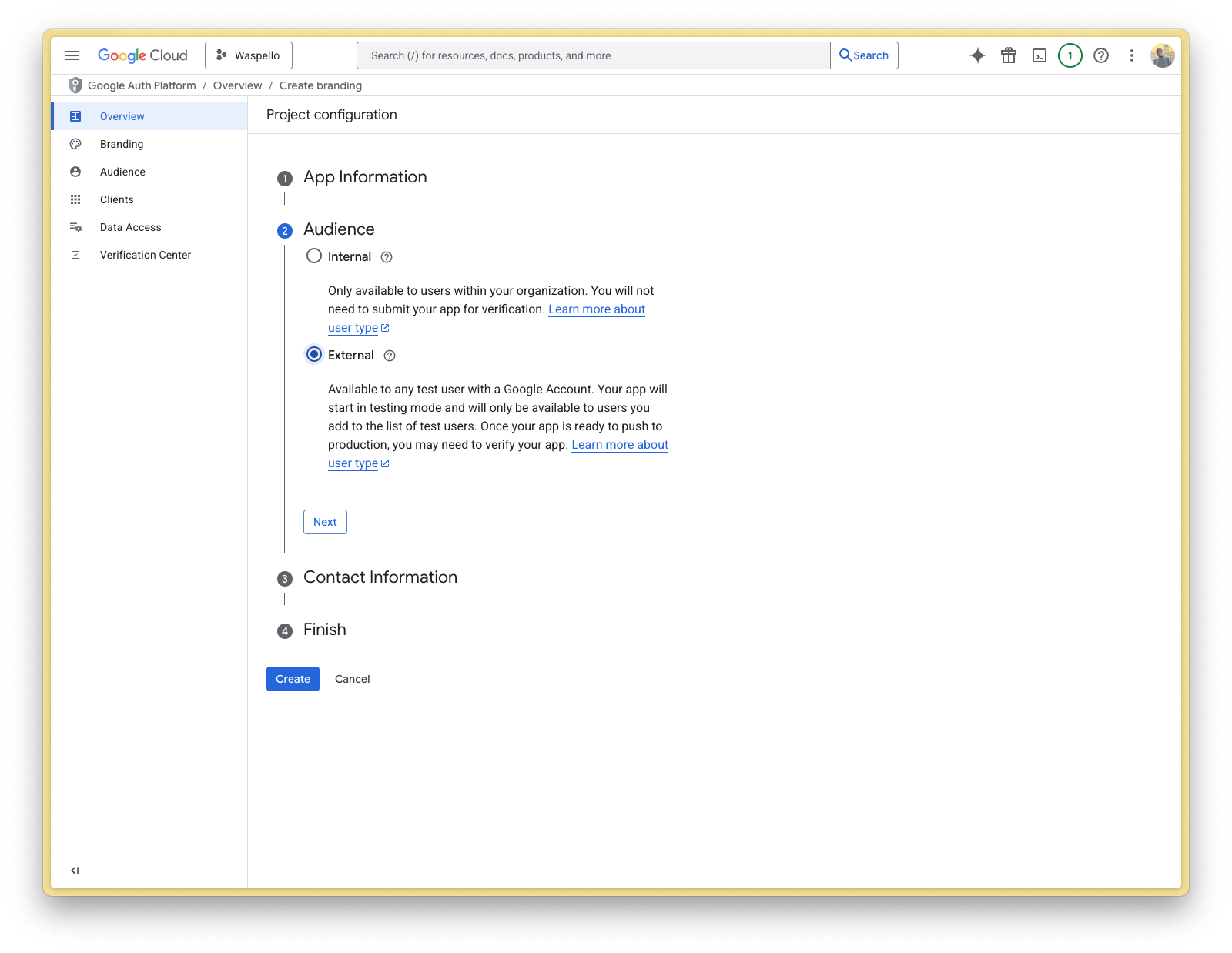
Fill out you app information. For the Audience field, we will go with External. When you're done, click Create.
-
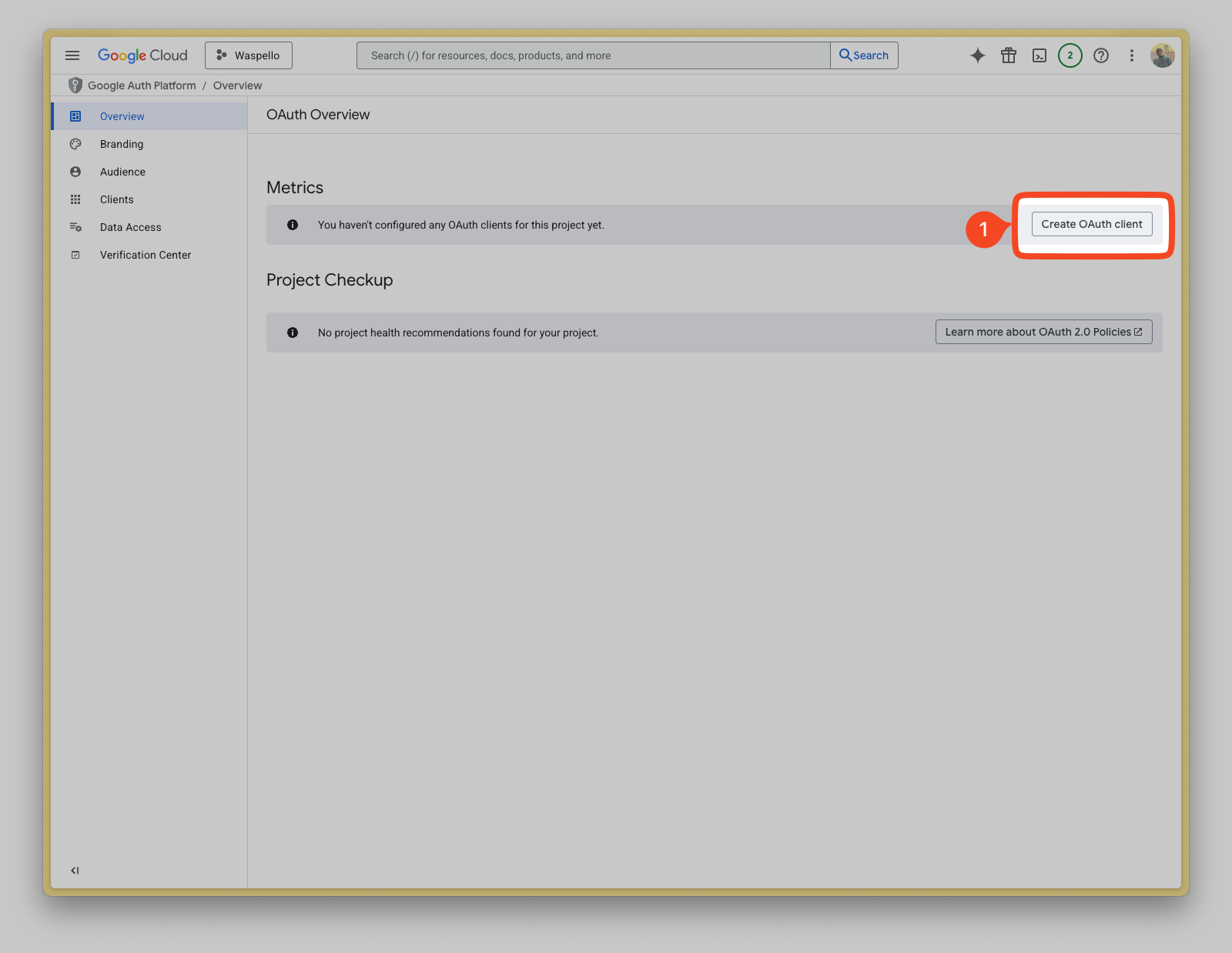
You should now be in the OAuth Overview page. Click on Create OAuth Client (1).
-
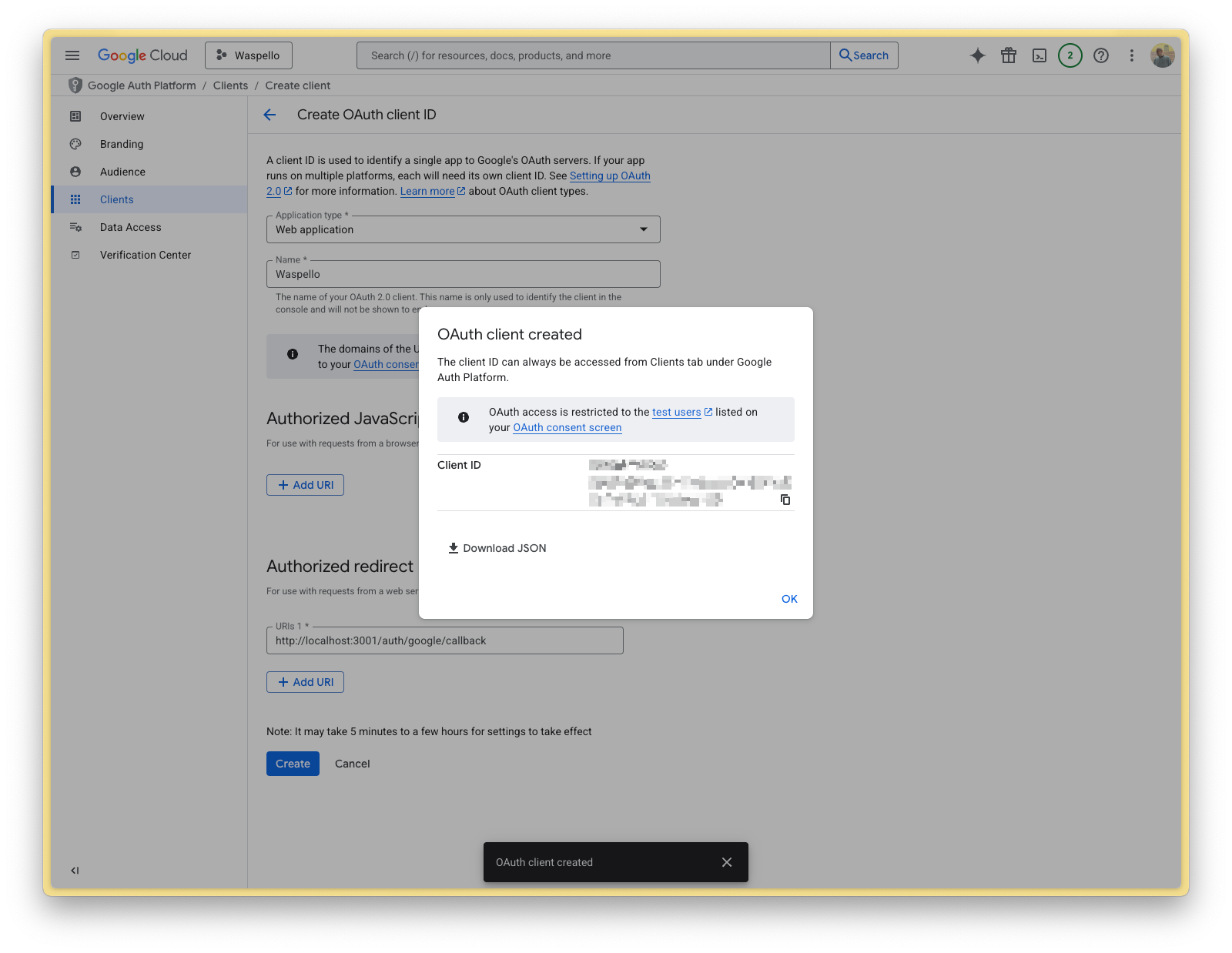
Fill out the form. These are the values for a typical Wasp application:
# Field Value 1 Application type Web application 2 Name (your wasp app name) 3 Authorized redirect URIs http://localhost:3001/auth/google/callbacknoteOnce you know on which URL(s) your API server will be deployed, also add those URL(s) to the Authorized redirect URIs.
For example:https://your-server-url.com/auth/google/callback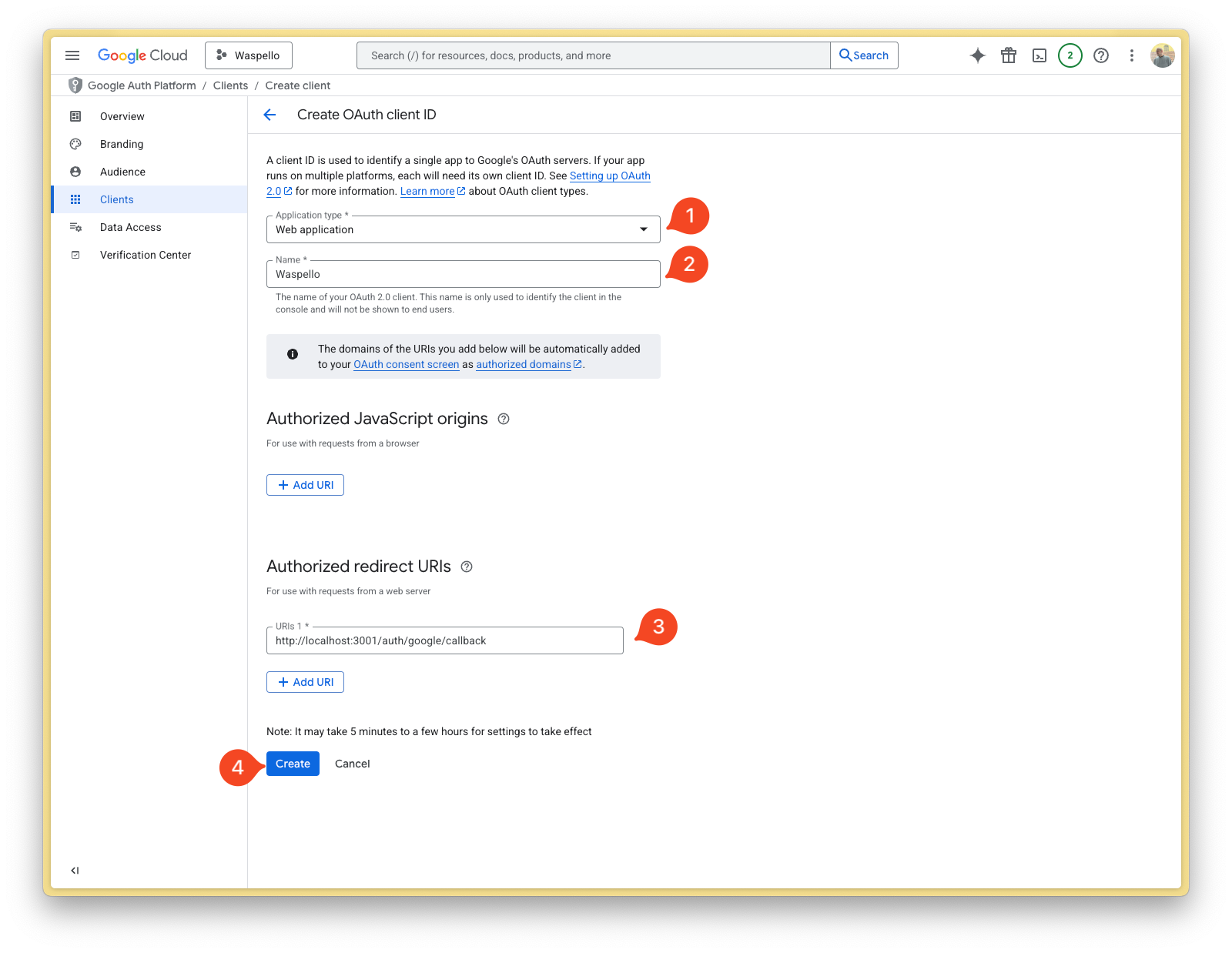
Then click on Create (4).
-
You will see a box saying OAuth client created. Click on OK.
-
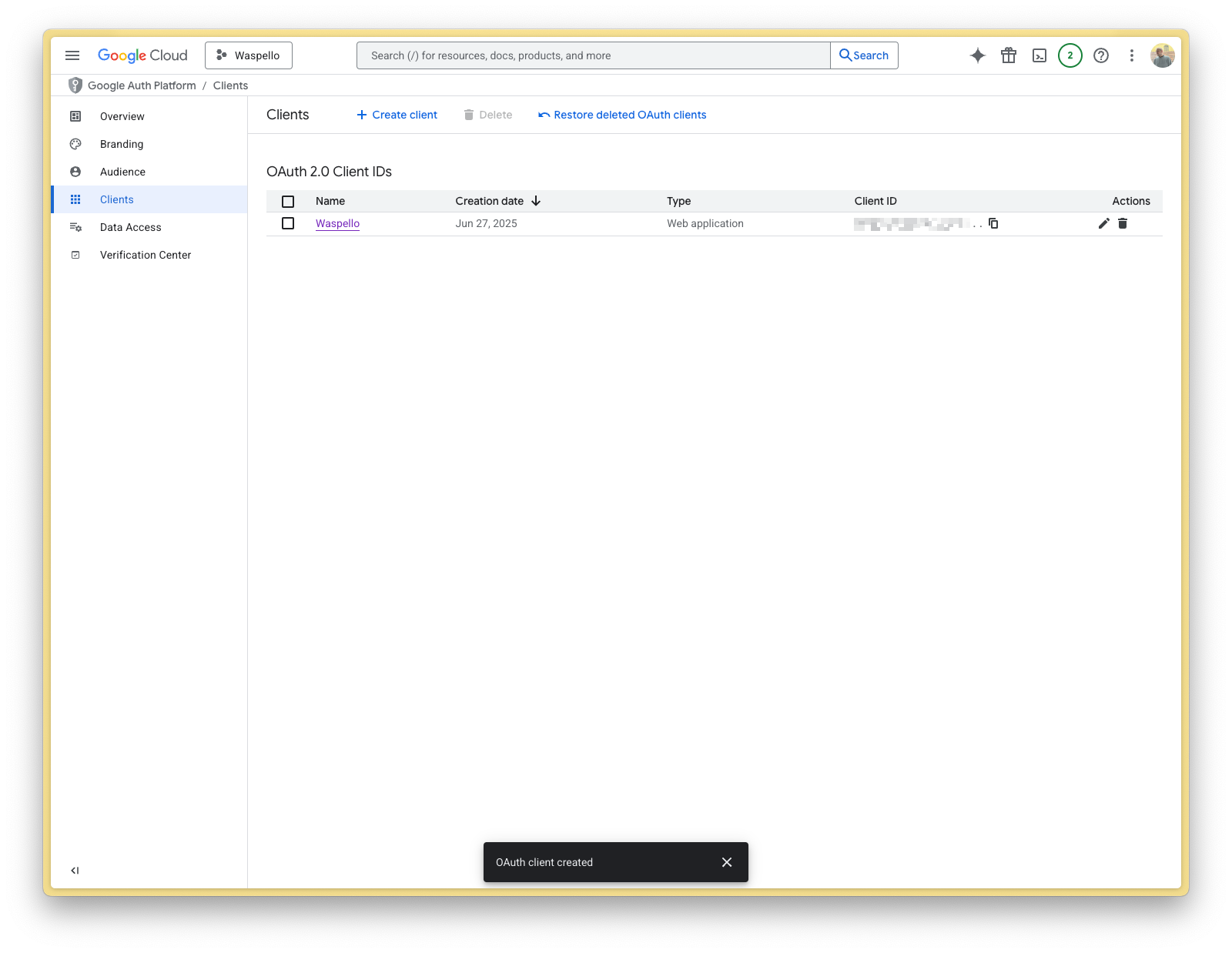
Click on the name of your newly-created app.
-
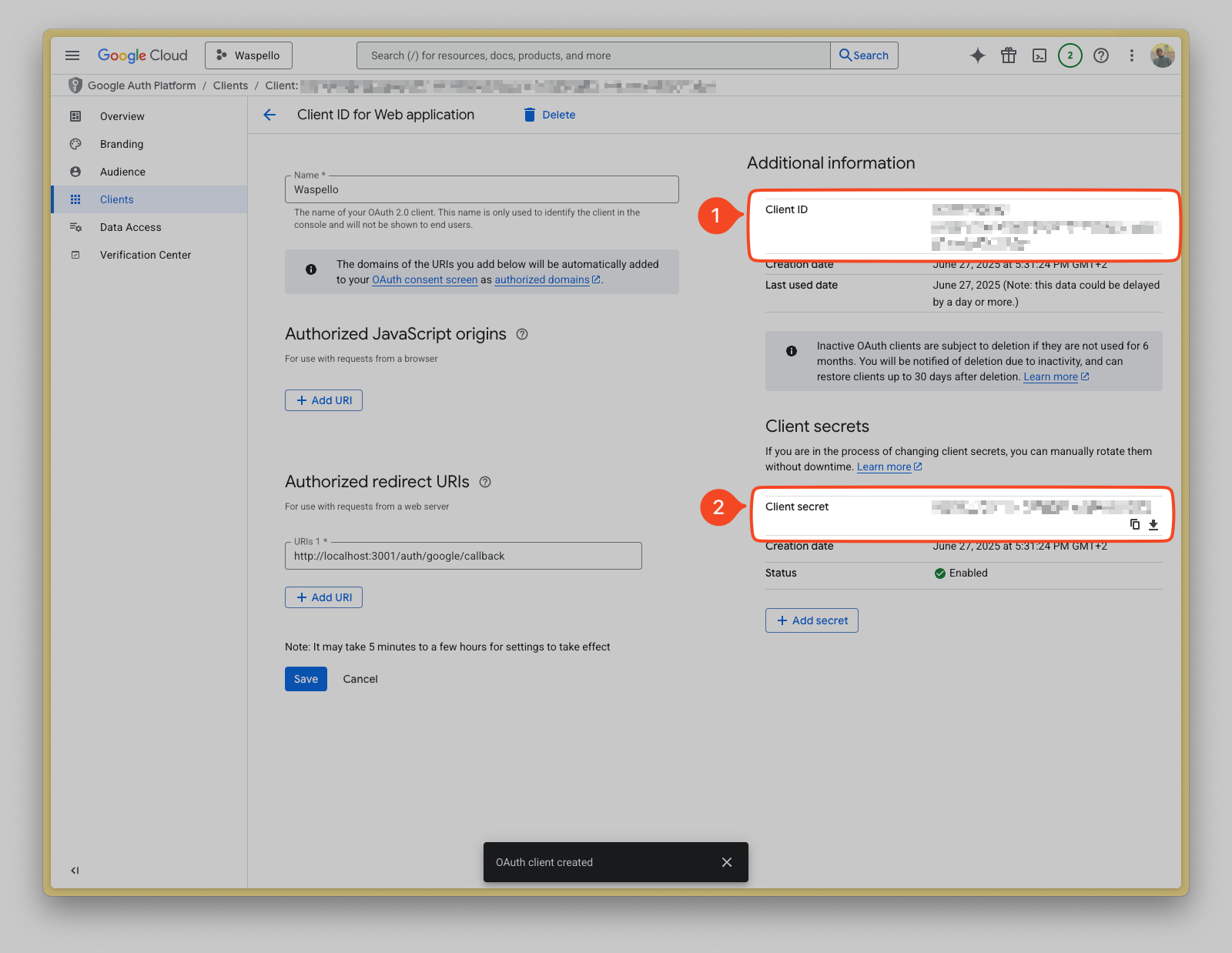
On the right-hand side, you will see your Client ID (1) and Client secret (2). Copy them somewhere safe, as you will need them for your app.
 info
infoThese are the credentials your app will use to authenticate with Google. Do not share them anywhere publicly, as anyone with these credentials can impersonate your app and access user data.
-
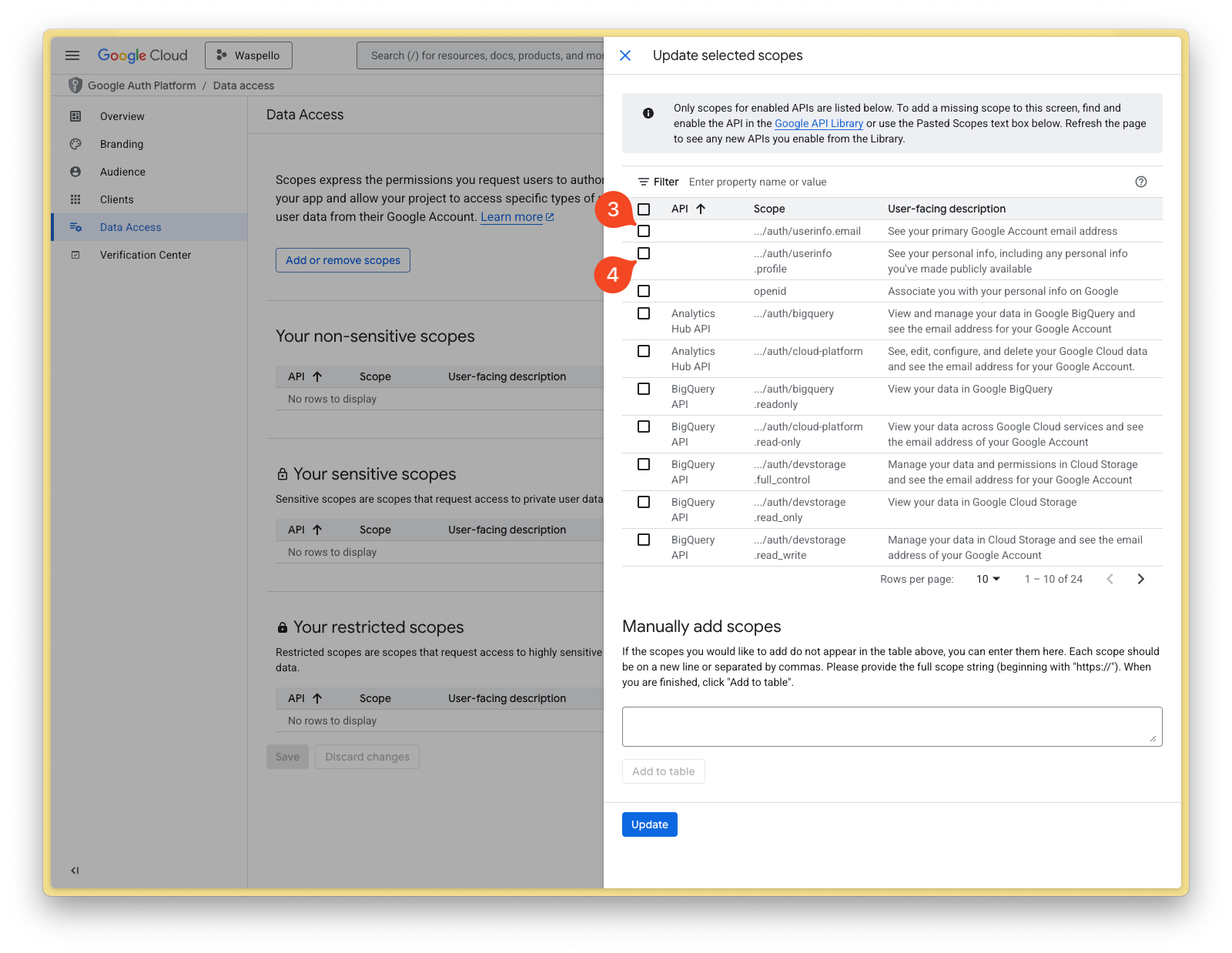
Click on Data Access (1) in the left-hand menu, then click on Add or remove scopes (2). You should select
userinfo.profile(3), and optionallyuserinfo.email(4), or any other scopes you want to use. Remember to click Update and Save when done.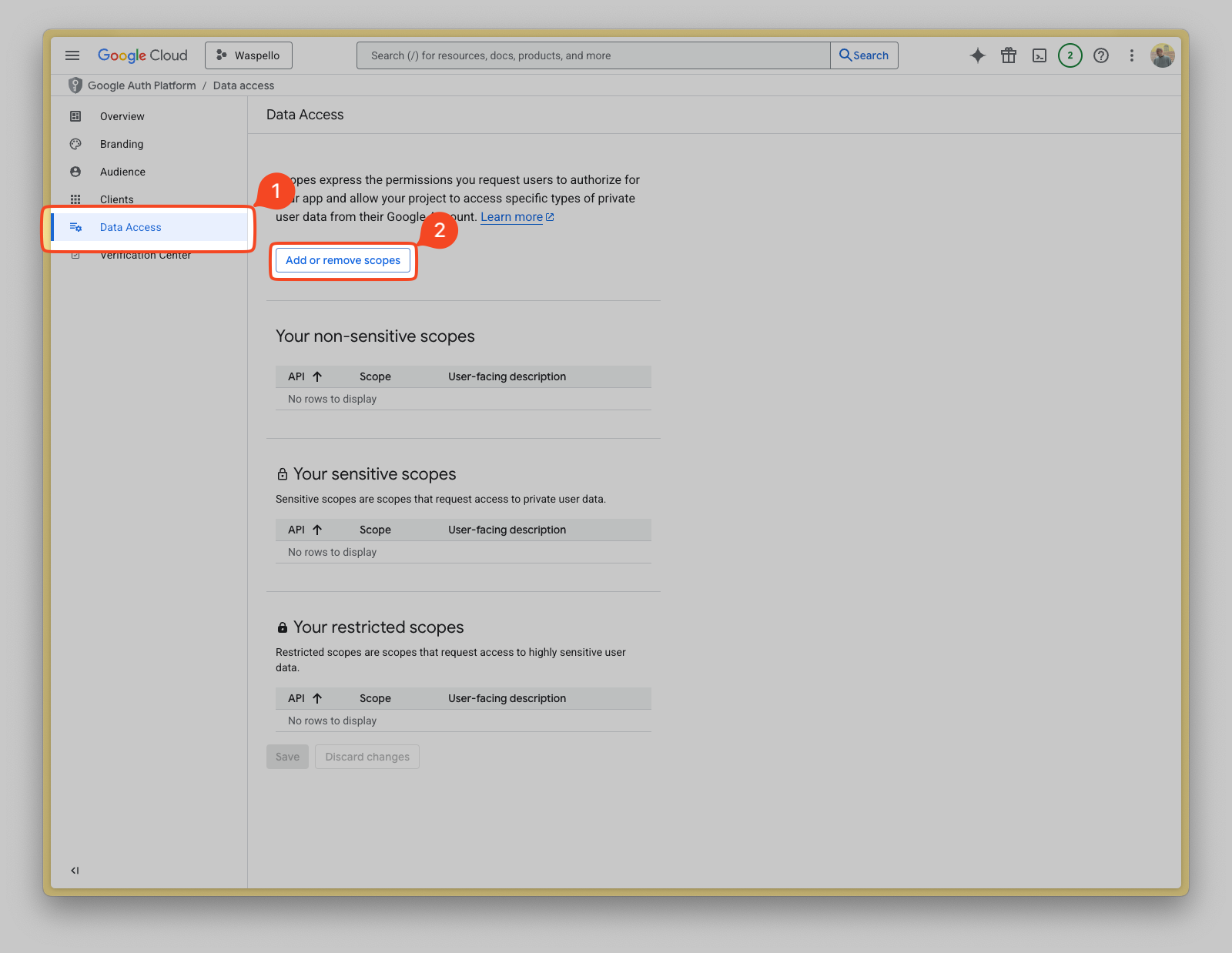
-
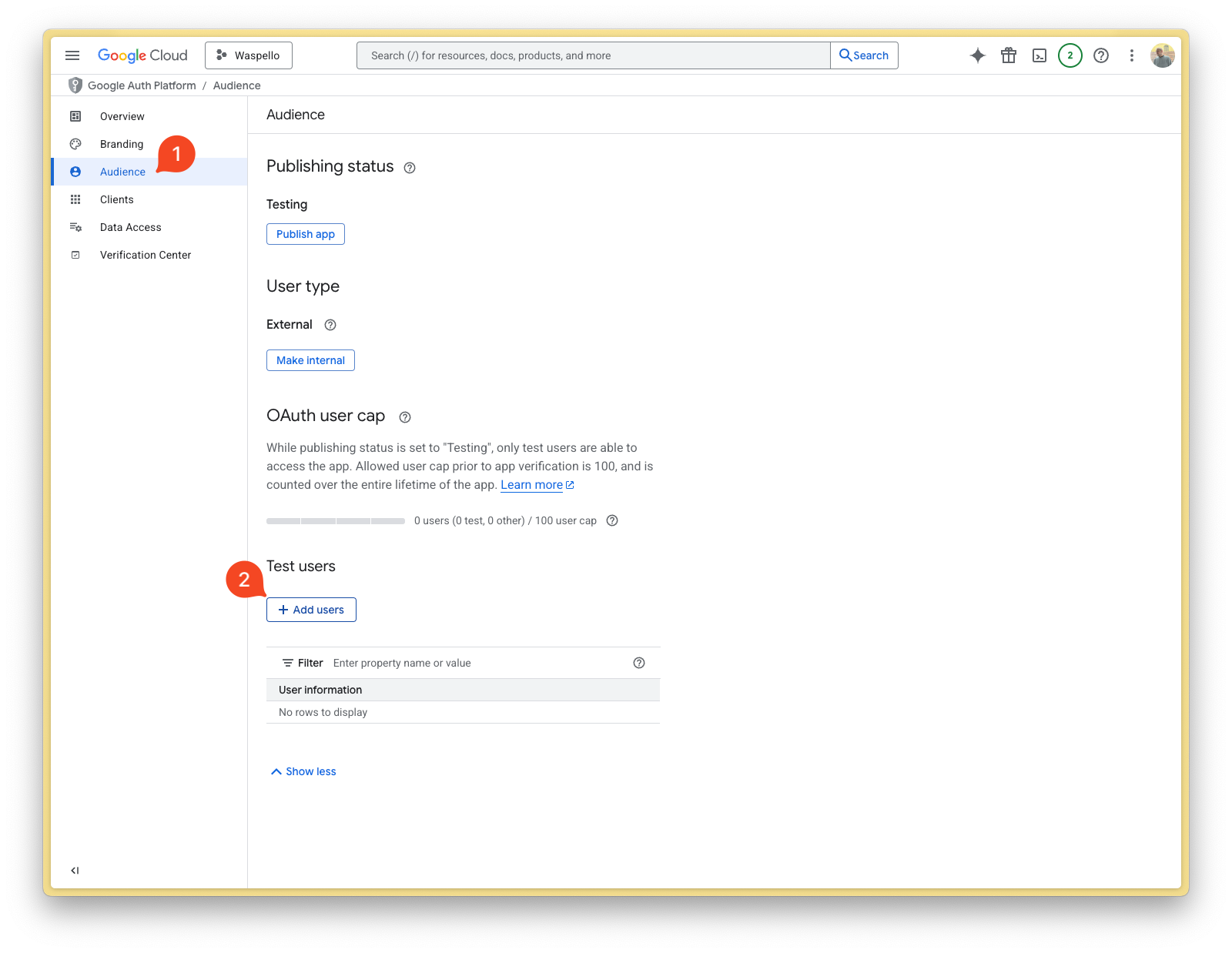
Go to Audience (1) in the left-hand menu, and add any test users you want (2). This is useful for testing your app before going live. You can add any email addresses you want to test with.
-
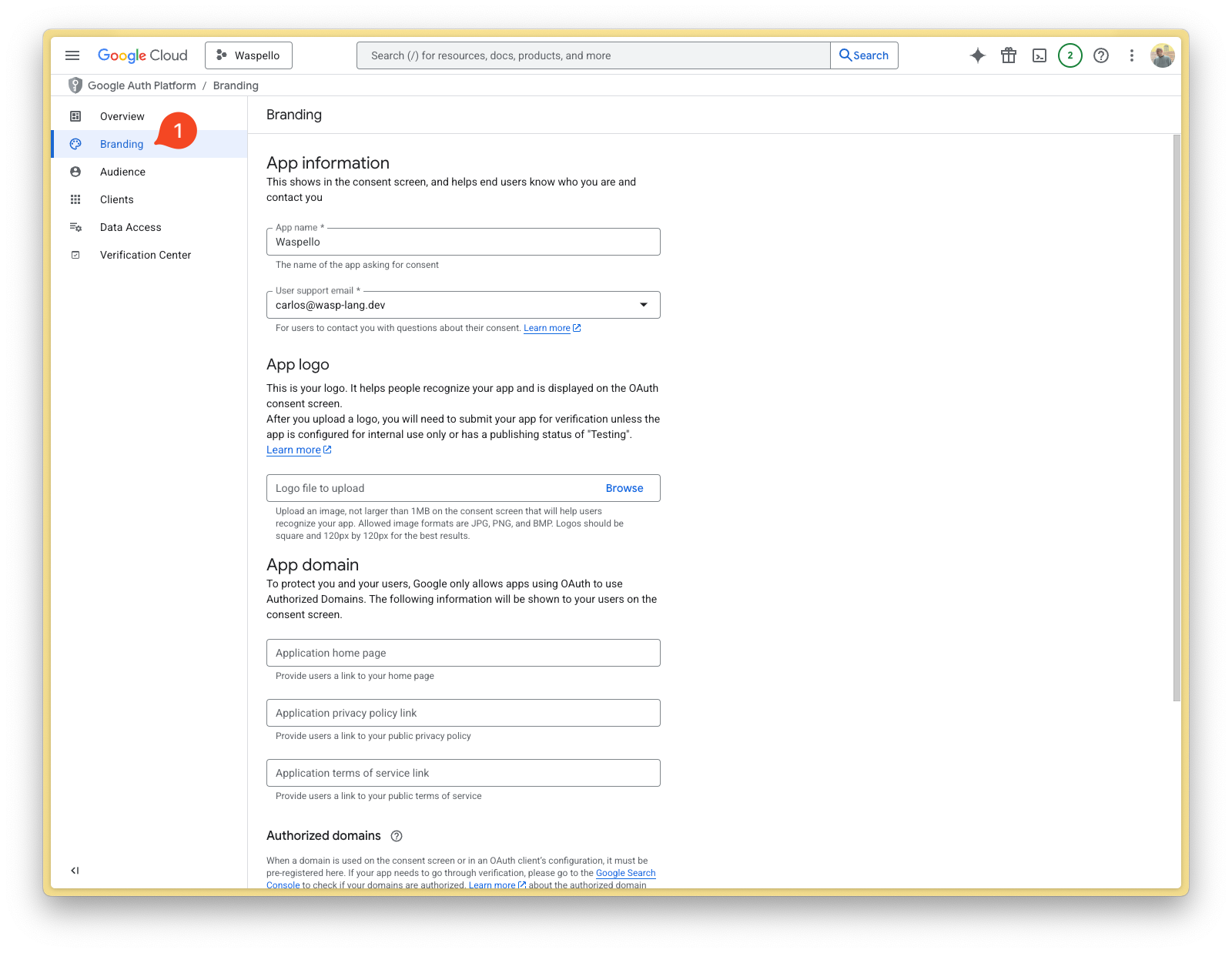
Finally, you can go to Branding (1) in the left-hand menu, and customize your app's branding in the Google login page. This is optional, but recommended if you want to make your app look more professional.
4. Adding Environment Variables
Add these environment variables to the .env.server file at the root of your project (take their values from the previous step):
GOOGLE_CLIENT_ID=your-google-client-id
GOOGLE_CLIENT_SECRET=your-google-client-secret
5. Adding the Necessary Routes and Pages
Let's define the necessary authentication Routes and Pages.
Add the following code to your main.wasp.ts file:
import { app, page, route } from "@wasp.sh/spec"
import { LoginPage } from "./src/pages/auth" with { type: "ref" }

export default app({
  // ...
  spec: [
    route("LoginRoute", "/login", page(LoginPage)),
  ],
})
We'll define the React components for these pages in the src/pages/auth.tsx file below.
6. Create the Client Pages
We are using Tailwind CSS to style the pages. Read more about how to add it here.
Let's create a auth.tsx file in the src/pages folder and add the following to it:
- JavaScript
- TypeScript
import { LoginForm } from "wasp/client/auth";

export function LoginPage() {
  return (
    <Layout>
      <LoginForm />
    </Layout>
  );
}

// A layout component to center the content
export function Layout({ children }) {
  return (
    <div className="h-full w-full bg-white">
      <div className="flex min-h-[75vh] min-w-full items-center justify-center">
        <div className="h-full w-full max-w-sm bg-white p-5">
          <div>{children}</div>
        </div>
      </div>
    </div>
  );
}
import type { ReactNode } from "react";
import { LoginForm } from "wasp/client/auth";

export function LoginPage() {
  return (
    <Layout>
      <LoginForm />
    </Layout>
  );
}

// A layout component to center the content
export function Layout({ children }: { children: ReactNode }) {
  return (
    <div className="h-full w-full bg-white">
      <div className="flex min-h-[75vh] min-w-full items-center justify-center">
        <div className="h-full w-full max-w-sm bg-white p-5">
          <div>{children}</div>
        </div>
      </div>
    </div>
  );
}
We imported the generated Auth UI components and used them in our pages. Read more about the Auth UI components here.
Conclusion
Yay, we've successfully set up Google Auth! 🎉

Running wasp db migrate-dev and wasp start should now give you a working app with authentication.
To see how to protect specific pages (i.e., hide them from non-authenticated users), read the docs on using auth.
Default Behaviour
Add google: {} to the auth.methods object to use it with default settings:
import { app } from "@wasp.sh/spec"

export default app({
  name: "myApp",
  wasp: { version: "^0.24" },
  title: "My App",
  head: ["<link rel='icon' href='/favicon.ico' />"],
  auth: {
    userEntity: "User",
    methods: {
      google: {}
    },
    onAuthFailedRedirectTo: "/login"
  },
  // ...
})
When a user signs in for the first time, Wasp creates a new user account and links it to the chosen auth provider account for future logins.
Overrides
By default, Wasp doesn't store any information it receives from the social login provider. It only stores the user's ID specific to the provider.
There are two mechanisms used for overriding the default behavior:
userSignupFieldsconfigFn
Let's explore them in more detail.
Data Received From Google
We are using Google's API and its /userinfo endpoint to fetch the user's data.
The data received from Google is an object which can contain the following fields:
[
  "name",
  "given_name",
  "family_name",
  "email",
  "email_verified",
  "aud",
  "exp",
  "iat",
  "iss",
  "locale",
  "picture",
  "sub"
]
The fields you receive depend on the scopes you request. The default scope is set to profile only. If you want to get the user's email, you need to specify the email scope in the configFn function.
For an up to date info about the data received from Google, please refer to the Google API documentation.
Using the Data Received From Google
When a user logs in using a social login provider, the backend receives some data about the user.
Wasp lets you access this data inside the userSignupFields getters.
For example, the User entity can include a displayName field which you can set based on the details received from the provider.
Wasp also lets you customize the configuration of the providers' settings using the configFn function.
Let's use this example to show both fields in action:
import { app } from "@wasp.sh/spec"
import { getConfig, userSignupFields } from "./src/auth/google" with { type: "ref" }

export default app({
  name: "myApp",
  wasp: { version: "^0.24" },
  title: "My App",
  head: ["<link rel='icon' href='/favicon.ico' />"],
  auth: {
    userEntity: "User",
    methods: {
      google: {
        configFn: getConfig,
        userSignupFields
      }
    },
    onAuthFailedRedirectTo: "/login"
  },
  // ...
})
model User {
  id          Int    @id @default(autoincrement())
  username    String @unique
  displayName String
}

// ...
- JavaScript
- TypeScript
import { defineUserSignupFields } from "wasp/server/auth";

export const userSignupFields = defineUserSignupFields({
  username: () => "hardcoded-username",
  displayName: (data) => data.profile.name,
});

export function getConfig() {
  return {
    scopes: ["profile", "email"],
  };
}
import { defineUserSignupFields } from "wasp/server/auth";

export const userSignupFields = defineUserSignupFields({
  username: () => "hardcoded-username",
  displayName: (data: any) => data.profile.name,
});

export function getConfig() {
  return {
    scopes: ["profile", "email"],
  };
}
Wasp automatically generates the defineUserSignupFields function to help you correctly type your userSignupFields object.
Using Auth
To read more about how to set up the logout button and get access to the logged-in user in both client and server code, read the docs on using auth.
When you receive the user object on the client or the server, you'll be able to access the user's Google ID like this:
const googleIdentity = user.identities.google

// Google User ID for example "123456789012345678901"
googleIdentity.id
Read more about accessing the user data in the Accessing User Data section of the docs.
API Reference
SocialAuthConfig »
All the options for the google auth method.
For the provider-specific behavior of the configFn and userSignupFields functions, check the Overrides section. For behavior common to all providers, check the Social Auth Overview.